How to import MusicXML, MIDI, and other score files into Flat
Last updated September 15, 2026
Importing in Flat turns a file you already have into a fully editable score. Flat imports MusicXML and MIDI files, plus MuseScore, Finale, Guitar Pro, PowerTab, ABC, and Encore files, and what comes out is a normal Flat score you can edit, transpose, share, and collaborate on.
Importing a PDF, a scan, or a photo of printed music? → Flat reads the music off the page and rebuilds it as notation - that's a different flow, covered in its own article.
How do I import MusicXML, MIDI, and other files?
Flat imports MusicXML (xml / mxl) and MIDI (mid / midi) files. If you are moving a score from another notation program, export it as MusicXML: it carries the actual notation across, not just the notes and rhythms.
Flat also accepts these additional formats. We read them on a best-effort basis and don't offer official support for them; they are there to help you bring existing files across. Whenever the original software can still export MusicXML, prefer that: it gives a more faithful result.
- ABC notation:
*.abc - MuseScore:
*.mscz - Finale:
*.musx - Guitar Pro files:
*.gp(v7 and v8),*.gpx(v6),*.gp5,*.gp4,*.gp3 - PowerTab Editor:
*.ptb - Encore:
*.enc
Import and edit the files online with Flat
Go to My Library, click Create a score, then choose Import file:
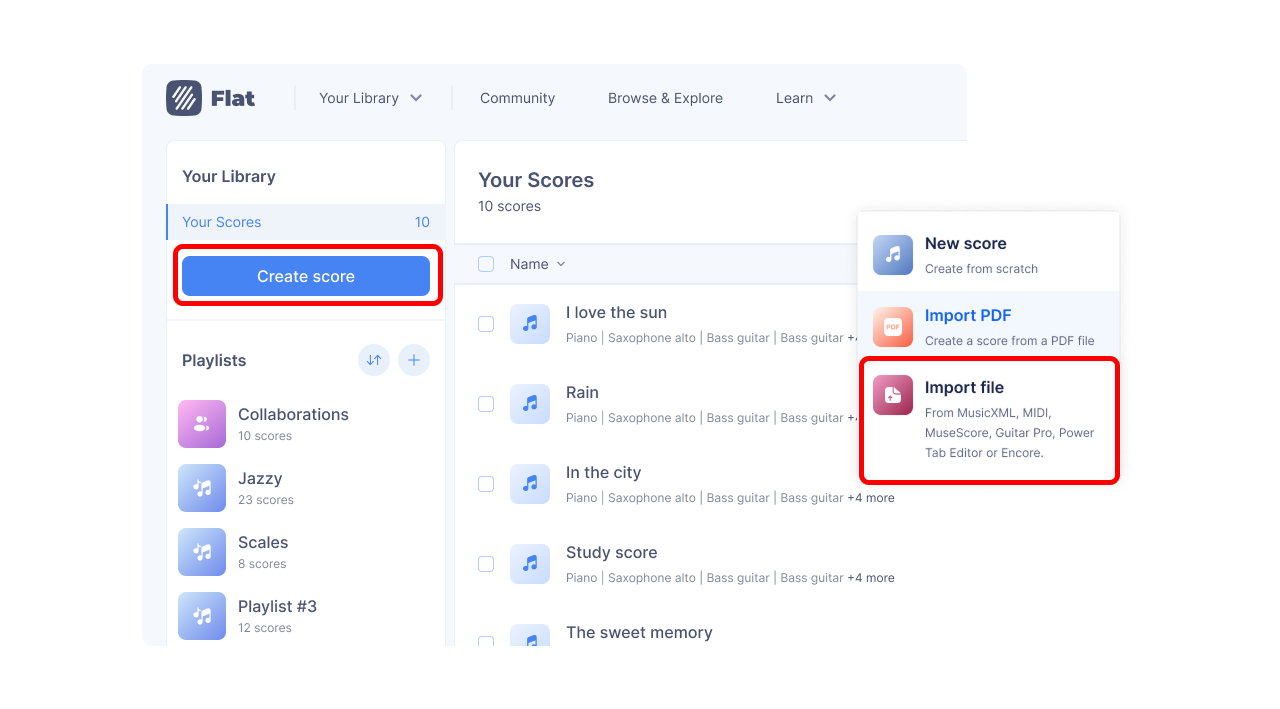
Pick the file or files you want, and they are added straight to your Flat account.
You can also export your scores back to MusicXML and open them in most other notation software.
How to export your files from another software?
Need help exporting from another program before you import? These pages walk through it:
- How to import a file from Finale? (MusicXML, or a
.musxfile directly) - How to import a file from Sibelius?
- How to import a file from MuseScore?
- How to import a file from Noteflight?
Frequently asked questions
Which file format should I use to move a score from another program?
MusicXML, whenever the other program can export it. MusicXML carries the actual notation - articulations, dynamics, lyrics, layout hints - while MIDI only carries pitches, rhythms, and timing. Importing MIDI gives you playable music, but you will usually have to rewrite the presentation by hand.
Can I import a PDF or a photo of sheet music?
Yes, but it works differently: instead of reading a file's notation data, Flat scans the printed page and rebuilds the music as notation. That flow has its own article - see scan and import sheet music from a PDF or photo for what Flat can read and how to get the best results.
Can I import a file Flat does not list?
Try it. Beyond MusicXML and MIDI, Flat accepts ABC, MuseScore, Finale, Guitar Pro, PowerTab, and Encore files without officially supporting them. If a file will not import, open it in the program that made it and export it as MusicXML instead - that route works from almost any notation software.
Can I get my score back out of Flat?
Yes. Flat exports to MusicXML, MIDI, PDF, and image formats, so nothing you import is locked in. See print and export your scores for the full list and the steps.