Performance Assignments
Last updated September 2, 2026
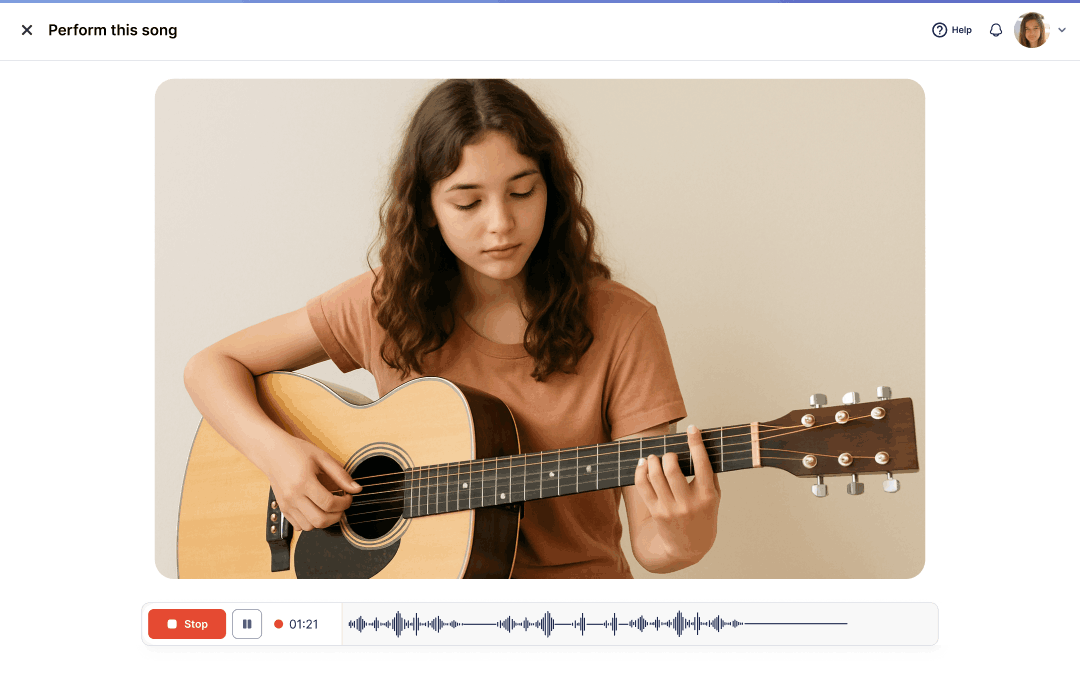
Performance assignments let you assess students' musical skills by collecting and reviewing audio or video recordings of their performances. Attach a score for a traditional performance task, or use Free Record to let students record without being tied to a single piece — ideal for varied repertoire or ensemble performances.
Score-based or score-free — you choose.
Assign a specific piece with playback, backtrack, and metronome support, or switch on Free Record so students can perform multiple pieces, in any style.
Creating a performance assignment
Launch your assignment
Go to your Assignment Library and click + New assignment. Then select Performance assignment as the assignment type.
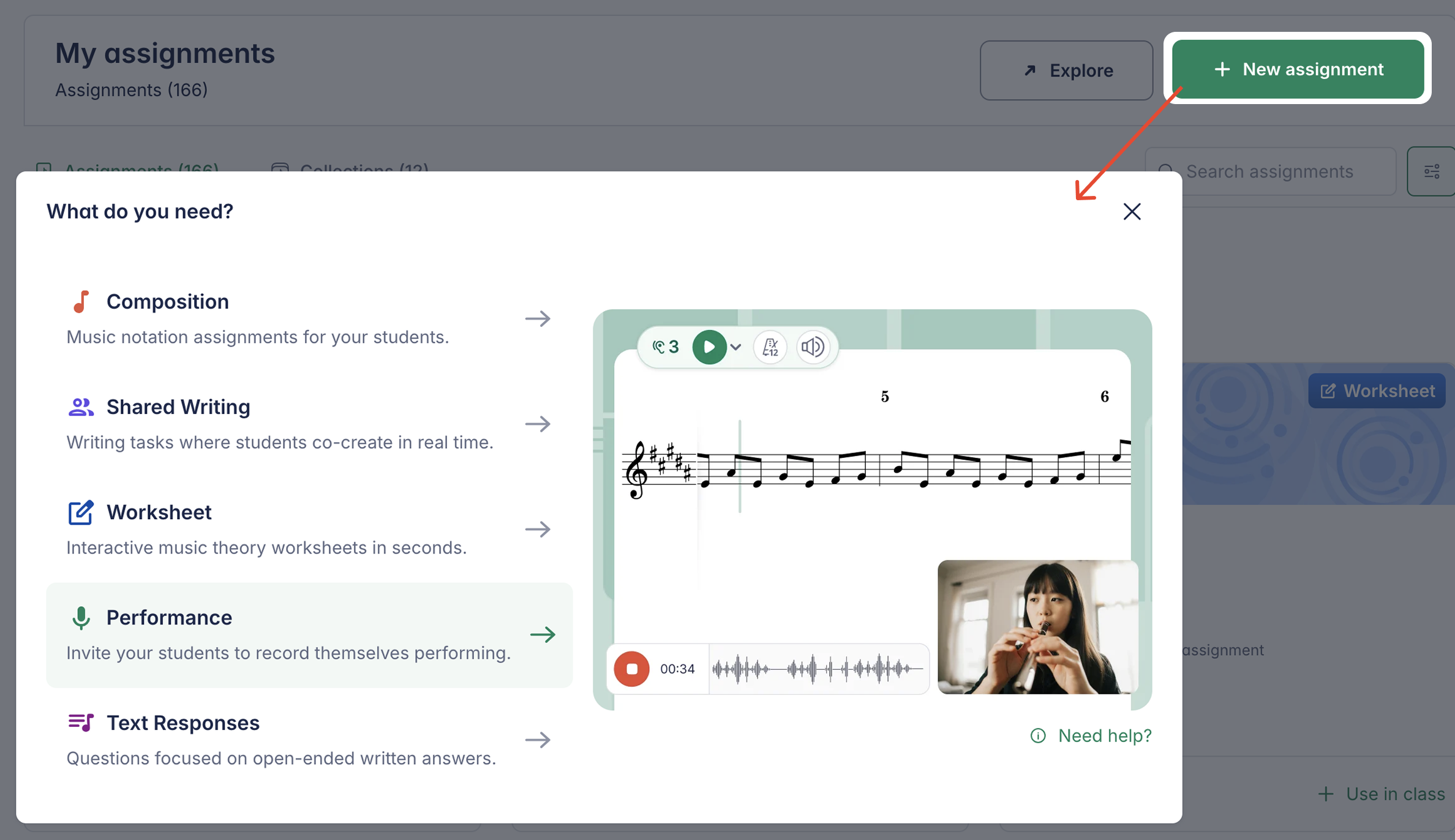
You can also launch a new assignment directly from inside a specific class, or by clicking + New assignment at the top of the editor page while working on a specific score.
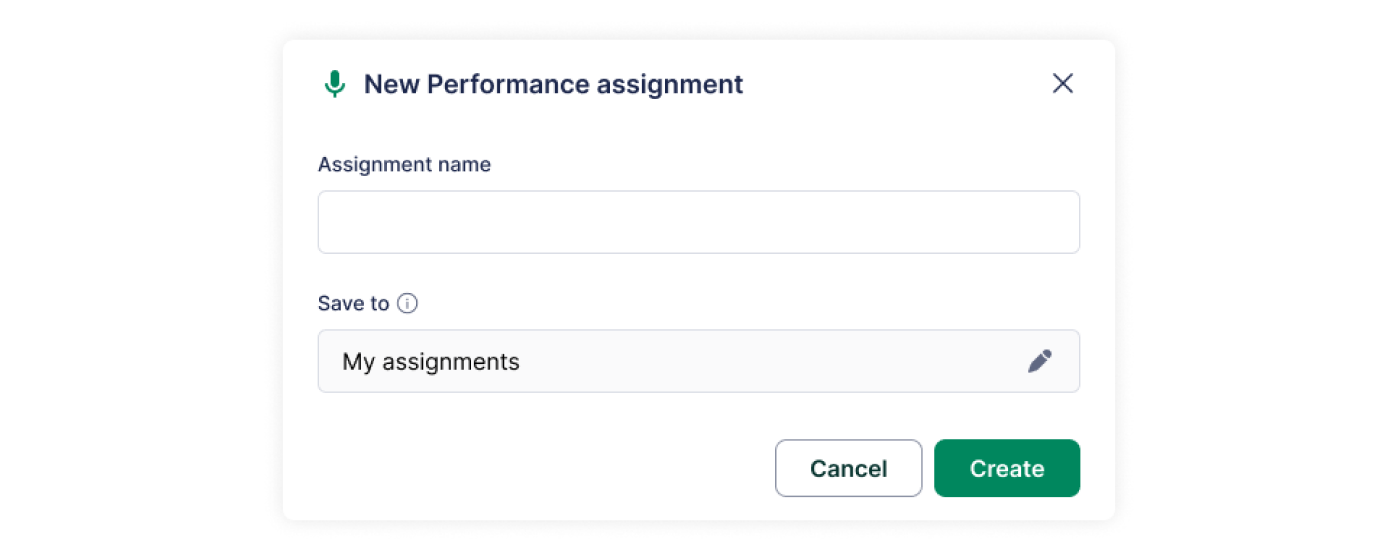
Name your assignment
Choose a clear and descriptive name. Once named, you’ll be guided through the step-by-step assignment creation process.
Choosing between a score-based assignment and Free Record
After selecting Performance as the assignment type, choose how students will perform:
| Mode | Best for | What students see |
|---|---|---|
| Score-based | A single piece with fixed duration and structure | Playback, backtrack, instrument part selection, metronome, speed control |
| Free Record | Varied repertoire or ensemble performances not tied to one score | A simple recorder — no score-dependent controls |
Score-based performance
Select the score that students will perform. We recommend creating the score in the Score Library beforehand for easy reuse — a score created inside the assignment is not saved to the Score Library for later use.
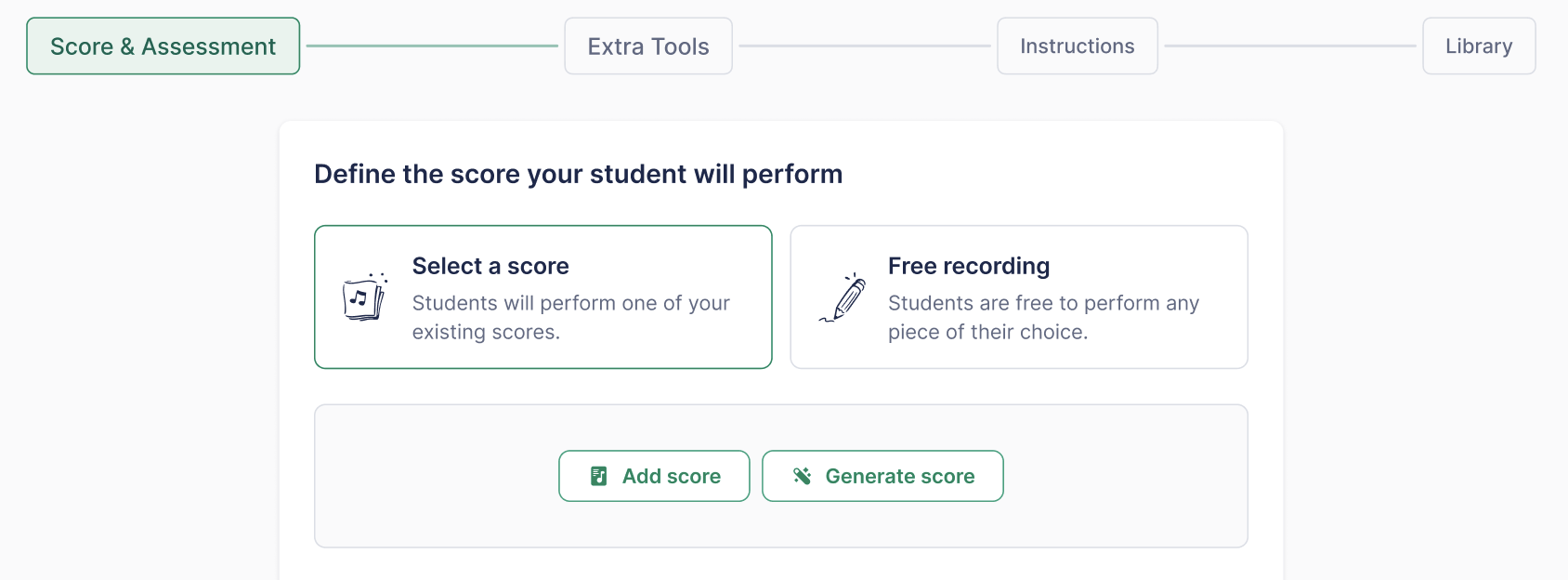
Don't have a score ready? Click Generate score to open the Sight Reading Generator right from this step—no need to leave the assignment flow. Pick the instrument and difficulty, and the generated score is saved to your Score Library automatically. See the Sight Reading Generator article for details.
Free Record mode
Select Free Recording when the assignment doesn't map to a single score — for example:
- Varied repertoire performance — students expressively perform several pieces across different styles, at their own pace, within one assignment.
- Ensemble performance — a group records itself performing together, without being limited to one instrument part or a fixed score duration.
Recording options (Extra tools)
Performance assignments support both audio-only and audio+video recording.
Score-based assignments support:
- Recording settings: Allow or restrict the use of metronome and/or backtracking for students
- Playback: Allow or restrict editor playback and set an optional playback limit
- Backtracking: Hear other instruments in the backtrack
- Metronome: Allow students to activate the metronome
- Speed: Allow students to modify the playback speed (increase or decrease BPM)
When Free Record is selected, no score is attached to the assignment. Because there's no score to reference, all score-dependent controls are hidden for both teachers and students, including:
- Playback
- Metronome
- Backtrack
- Speed control
Students instead see a straightforward recorder, and can choose to submit audio or video, just as with a score-based assignment.
Every Free Record submission has a hard cap of 10 minutes. This comfortably covers multi-piece or ensemble performances while keeping submissions manageable to review.
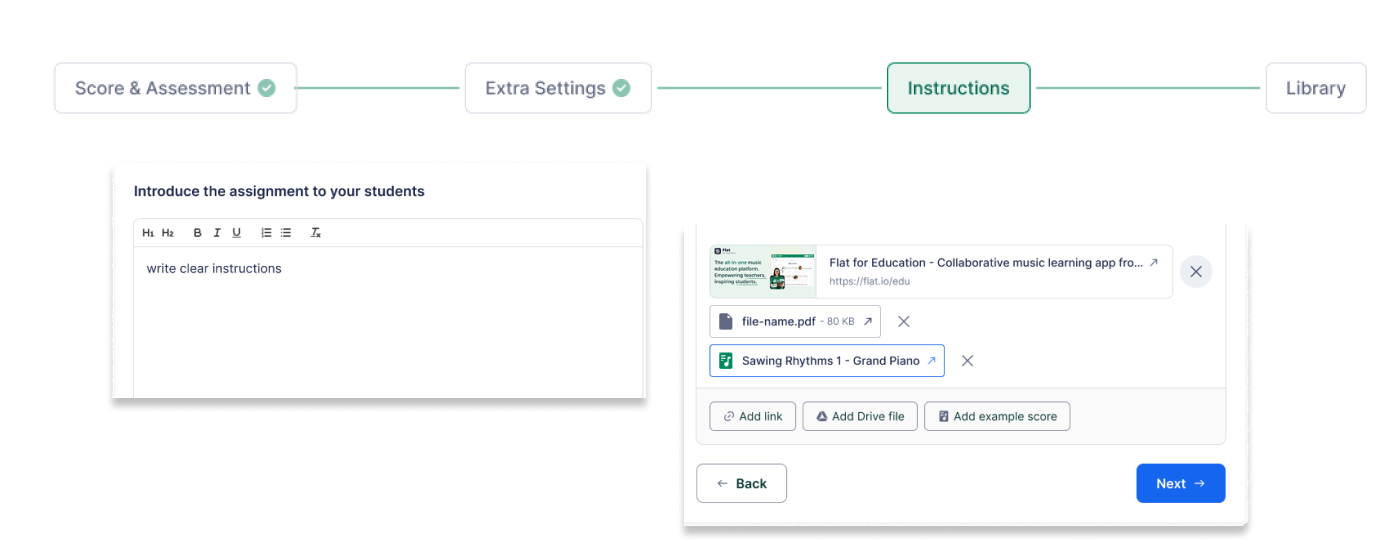
Add instructions
Provide clear and specific instructions to guide students through the assignment.
You can also attach supporting resources, such as:
- Documents and presentations
- Videos and audio files
- Read-only scores for reference
The instructions editor supports rich-text formatting, including bold, italic, and bullet points.
Sharing and publishing
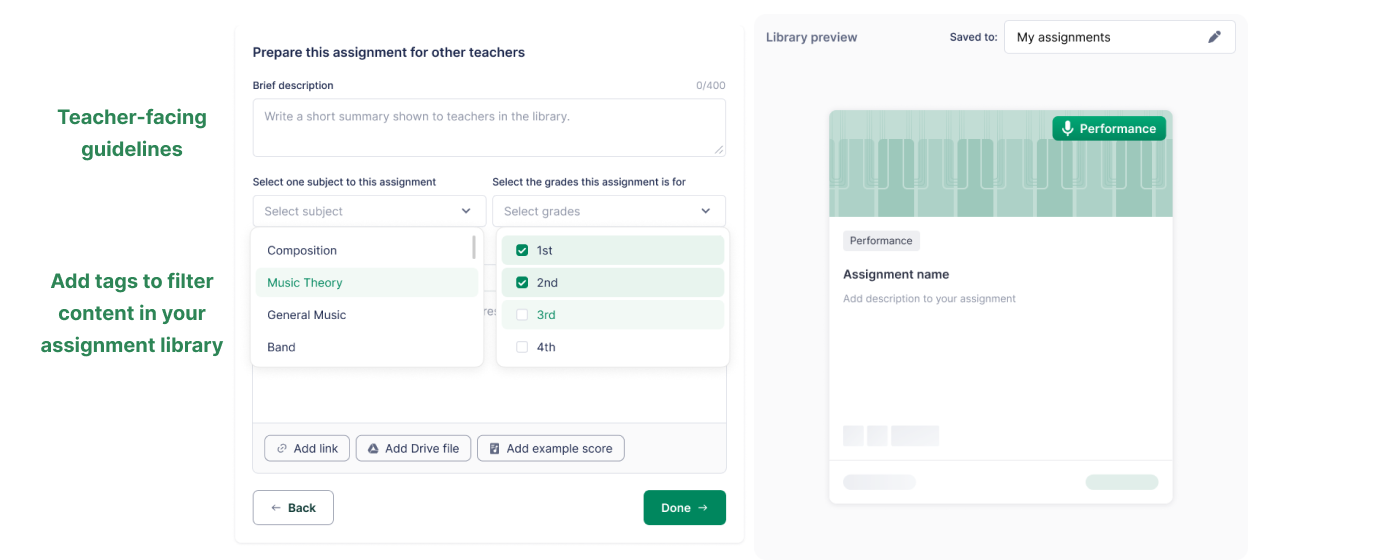
Sharing options and library organization
All assignments created in Flat for Education are saved in your Assignment Library and can be shared with other teachers in your organization.
To make sharing easier:
- Add teacher-facing guidelines to explain how the assignment should be used
- Add tags such as topics and grade levels to help you quickly find the assignment later
Post your assignment
Once everything is ready:
- Publish the assignment and assign it to one or more classes
- Use the Student Preview to see exactly what students will experience
- If you use Google Classroom, select the appropriate Classroom topic before posting
Note:
Grades are automatically synchronized with Google Classroom and supported Learning Management Systems (LMS) such as MusicFirst, Canvas, Schoology, Moodle, and more.
Learn more about LMS integrations here.
Student workflow
- Access the Assignment: Students access the assignment within their class.
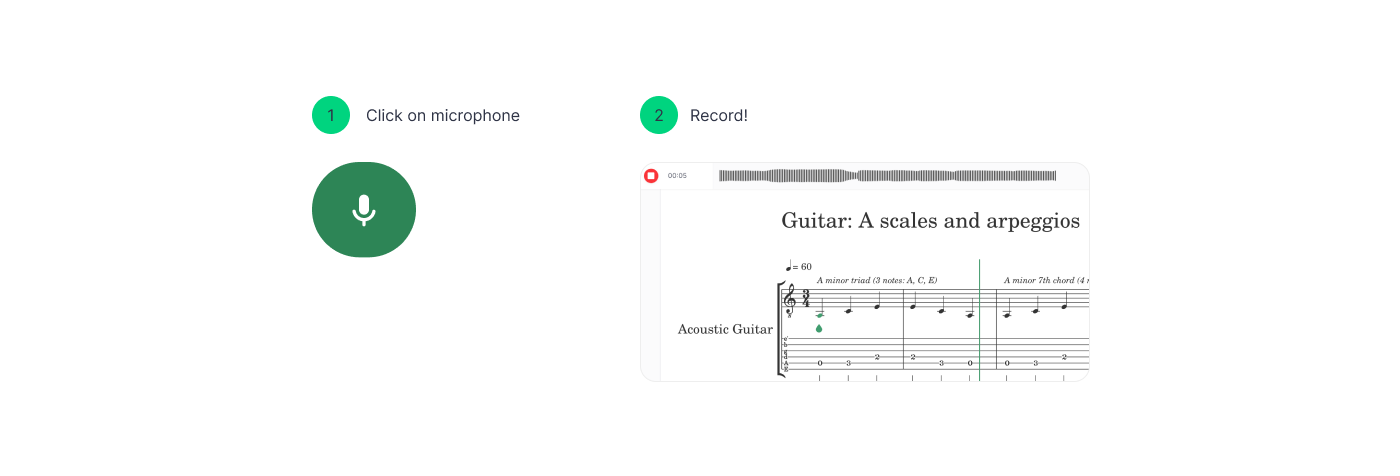
- Start Recording:
- Click the microphone button to begin recording.
- Students may need to grant microphone and camera access in their browser settings.
- A countdown will begin before the recording commences.
- Record and Review:
- Students record their performance.
- Review the recording using the playback controls.
- Re-record if needed. Only one recording can be saved at a time.
- Save and Submit:
- Click the Save button to save their recording.
- Click the Turn In button to submit the assignment.
Reviewing student work
- View student submissions within the Students' Work section of the assignment.
- Click on the Turned In tag to access detailed review mode, allowing you to listen to the student's performance alongside the original score.
- Utilize the grading and feedback features within Flat for Education. Grades will be automatically synchronized with your Google Classroom or other supported Learning Management Systems (LMS).
Other grading and reviewing capabilities are similar to those of classic assignments. You can learn more about grading and review on our dedicated help page.
Troubleshooting microphone issues
If a warning icon is displayed instead of the microphone, this is probably because the computer doesn't have a microphone or because access to the microphone has been rejected.

If you are using Google Chrome, you can change the microphone access rights for Flat for Education by clicking on the small lock button on the left of the address bar:
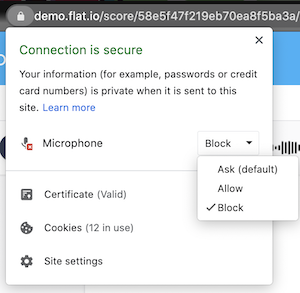
This is done almost the same way in Firefox. You will just have to reset the microphone access rights by clicking on the small cross button beside "Microphone".
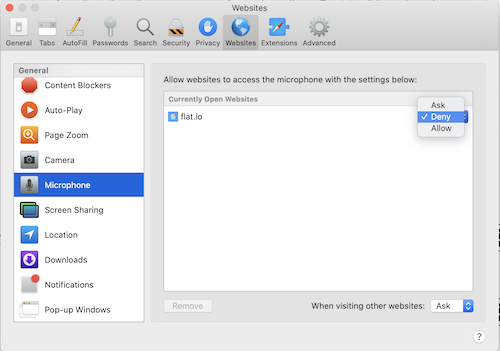
With Safari, it may be a little different if you decided to never give access to the microphone in the past. In that case, you will need to:
Open Safari preferences (click "Safari" in the top left corner of the screen, then "Preferences...").
Then, go to the "Websites" tab, and select "Microphone" in the list. There, you will be able to change the mic access rights for Flat:
Tutorials and links
For more information on how to use the performance assignments, watch this video tutorial!
Looking for inspiration? Go to your Assignment Library, open the FFE Assignment folder and explore various performance assignment ideas!