Shared Writing Assignments
Last updated September 2, 2026
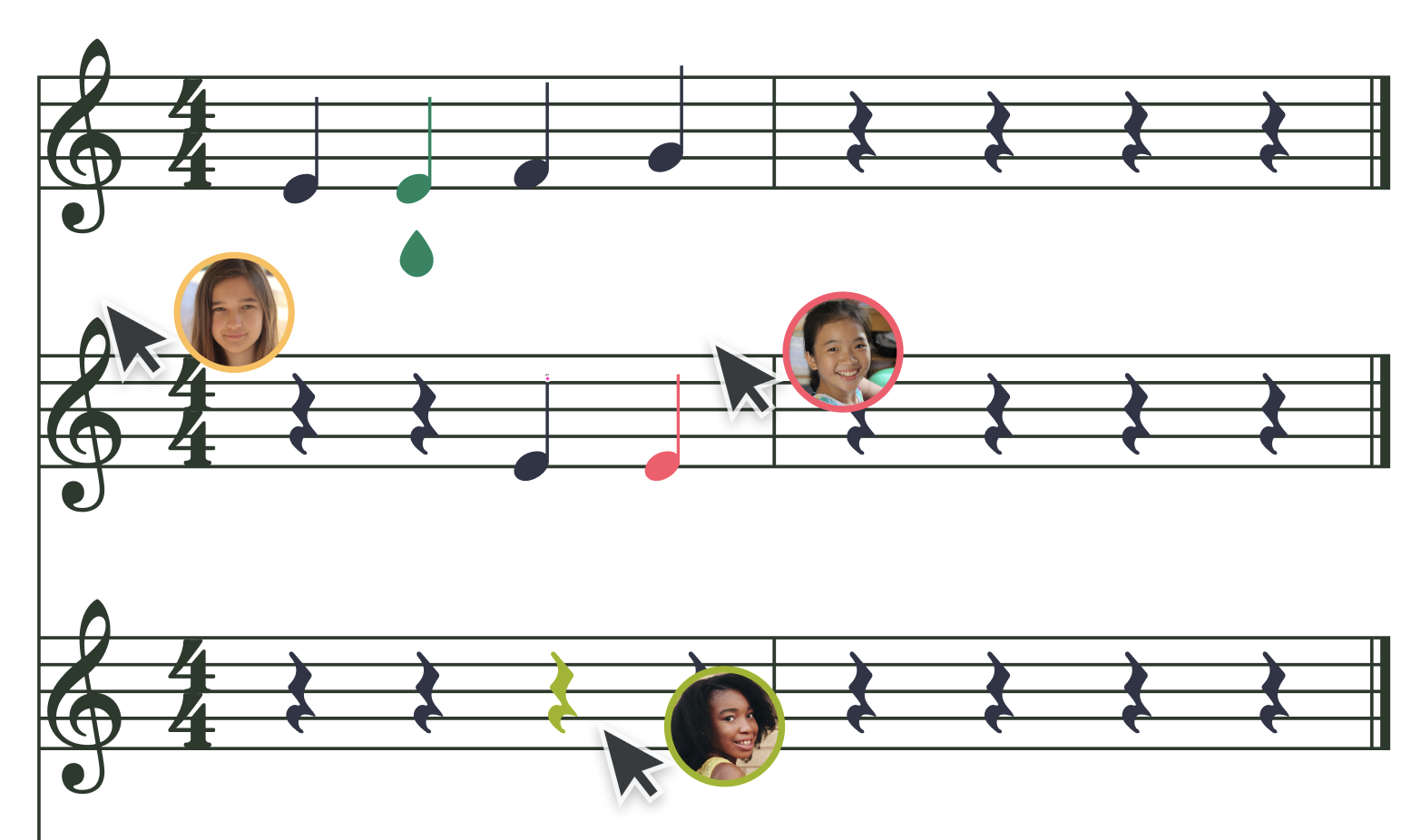
Flat for Education’s Shared Writing assignments are designed to foster collaboration and creativity among students while building core music notation skills.
These group-based activities allow multiple students to contribute to the same score, encouraging teamwork and musical dialogue. Whether students are co-creating a canon or arranging a piece together, this feature helps deepen their understanding of notation through shared musical thinking.
Two or more students. One score.
Each group works on a single score in real time. Teachers can see live progress, leave inline feedback, and grade the entire group at once—with grades synced directly back to your LMS.
Creating a Shared Writing Assignment
Launch your assignment
Go to your Assignment Library and click + New assignment. Then select Shared Writing as the assignment type.
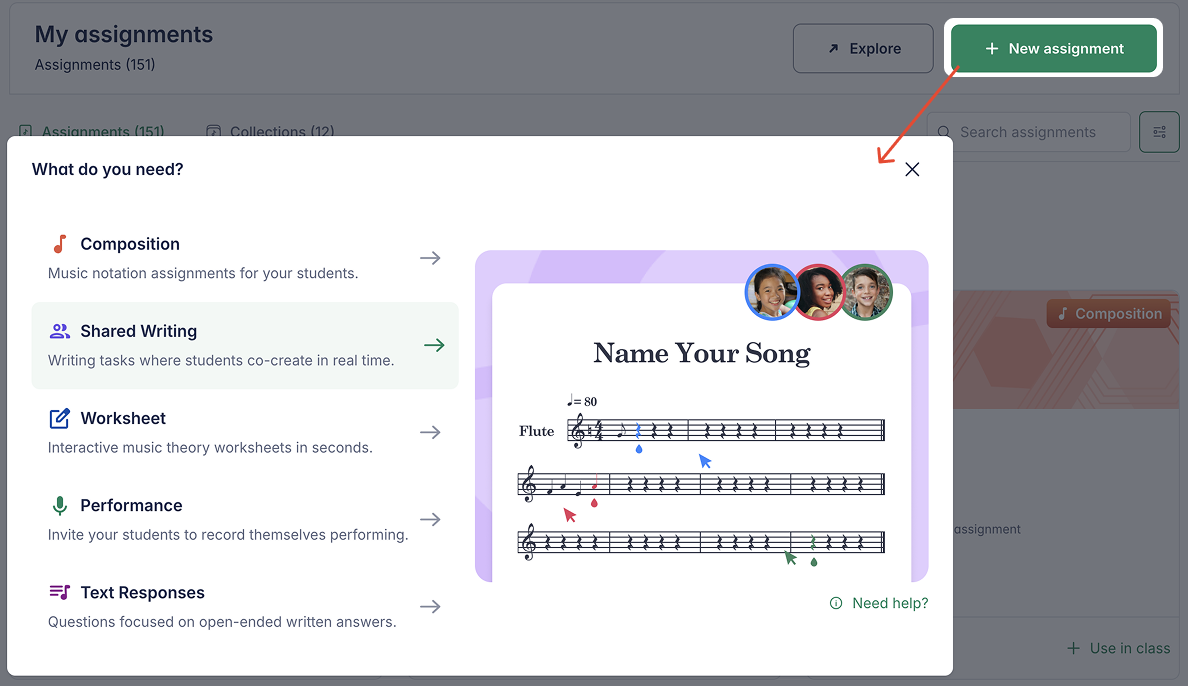
You can also launch a new assignment directly from inside a specific class, or by clicking + New assignment at the top of the editor page while working on a specific score.
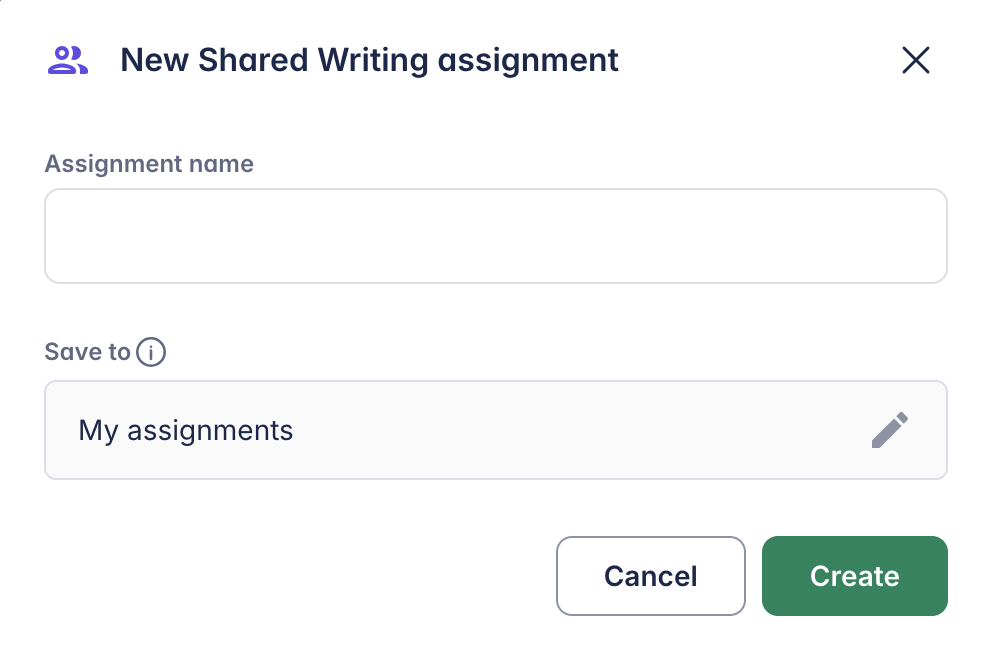
Name your assignment
Choose a clear and descriptive name that both you and your students will recognize. Once you’ve named it, you’ll be guided through the step-by-step configuration.
Configuring your assignment
Follow the steps below to configure your Shared Writing assignment.
Choose scores
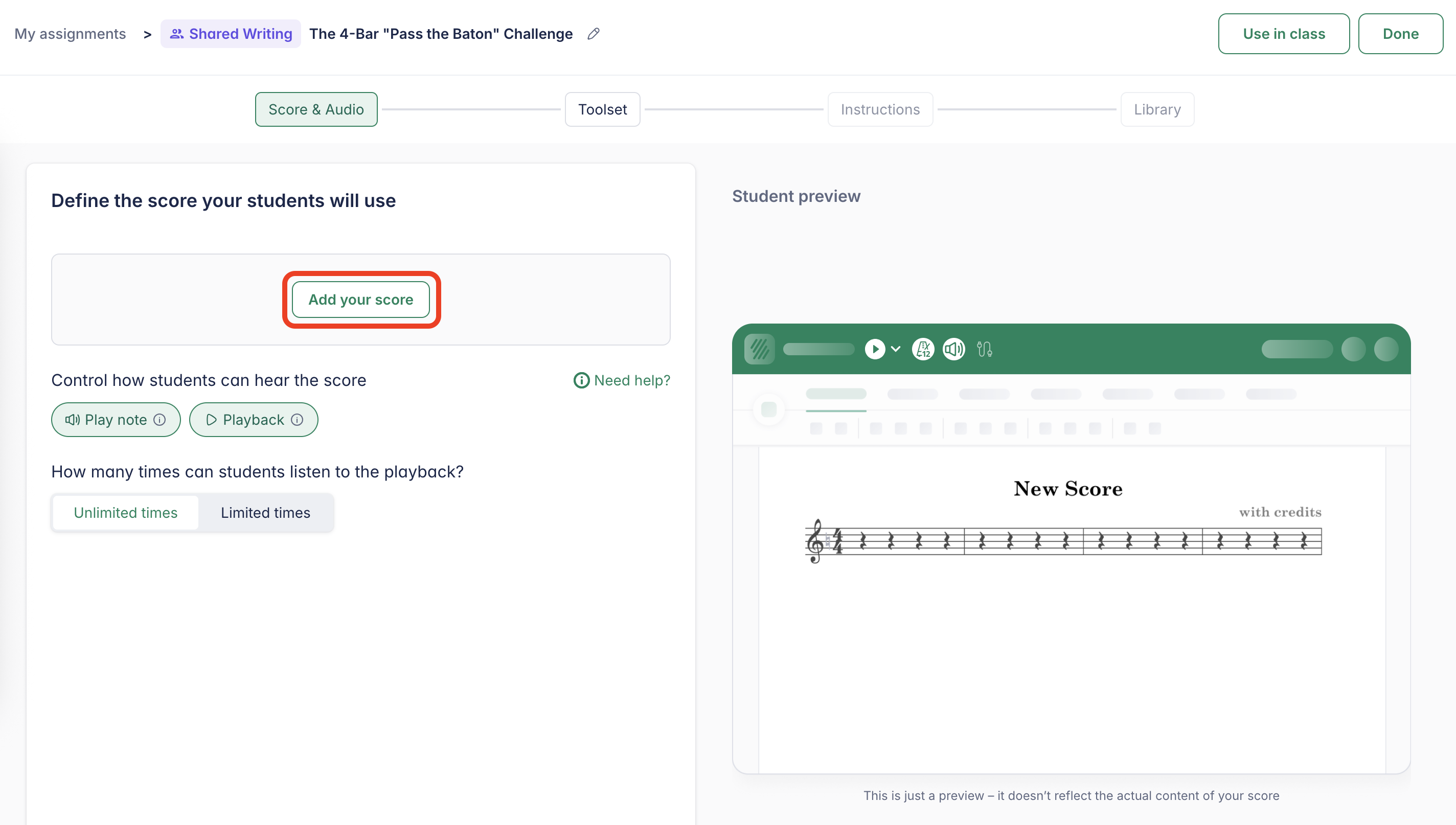
The first step is to choose a piece of music for the assignment. Click Add your score and select one from your score list.
You can also create a new score directly inside the assignment. Please note that this score will not be saved to your main score library.
This step is also where you can configure score-related options.
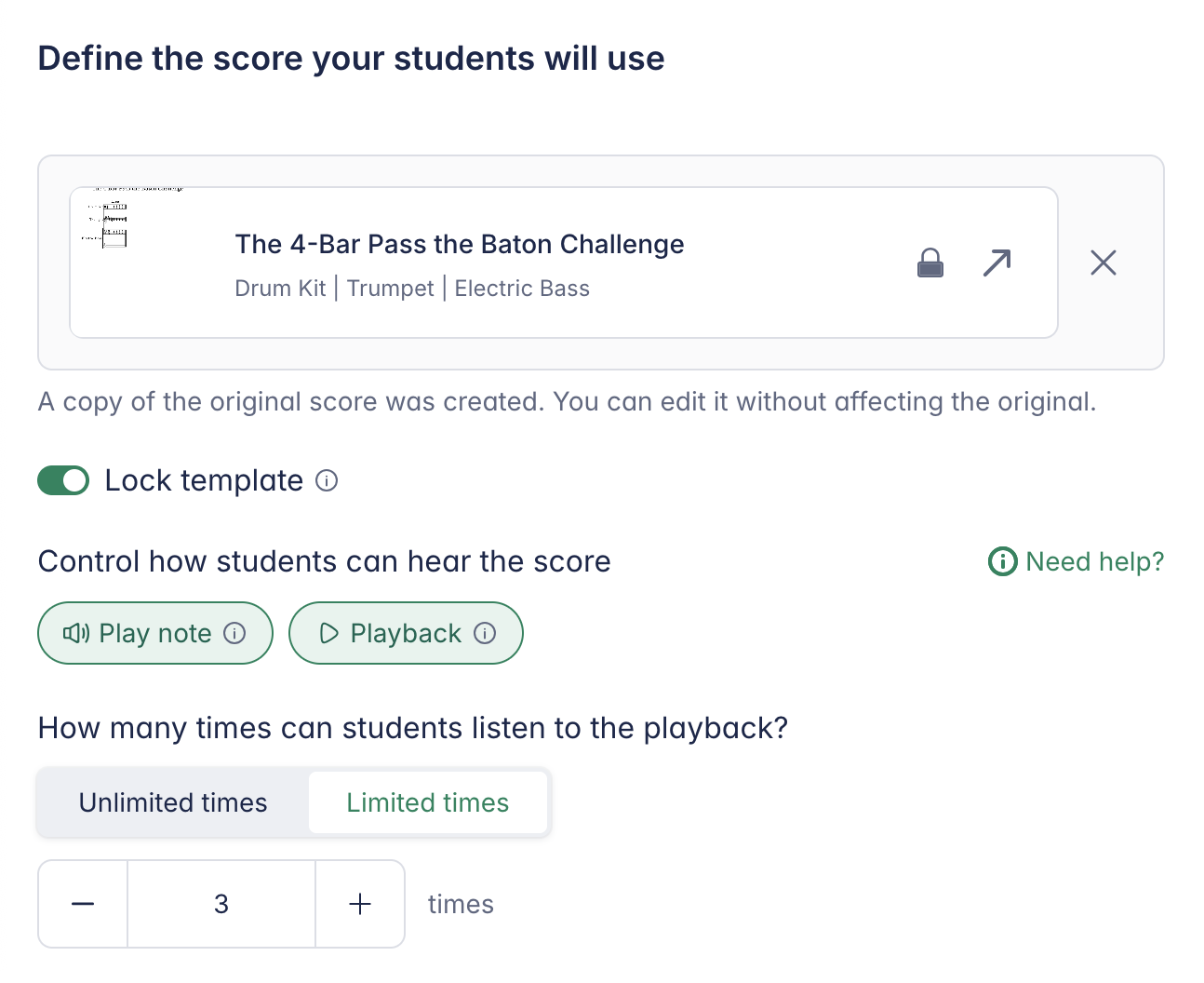
- Lock template – Prevent students from modifying the original notes of a template score
- Restrict play-note – Disable automatic playback when notes are entered
- Restrict editor playback – Allow playback only from provided audio tracks
- Playback limits – Limit how many times students can play the score (useful for dictation or ear training)
Select tools (Toolset)
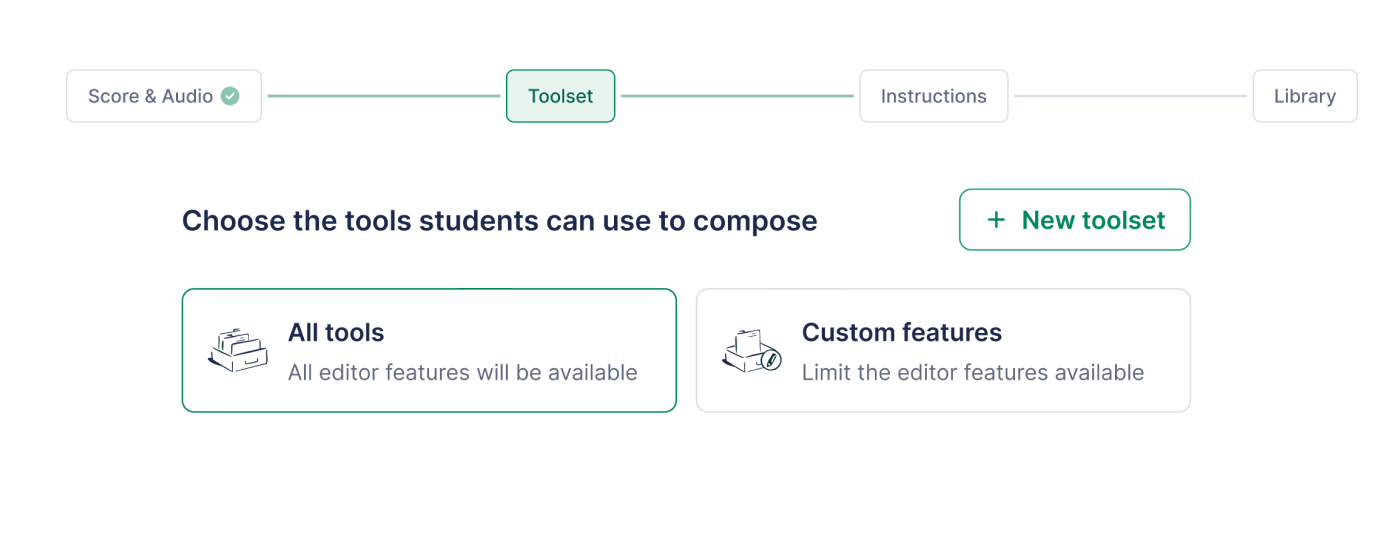
Choose which notation and editor tools students can access by selecting a Toolset.
You can allow all tools, or create a custom toolset to limit available features. This helps students focus on specific notation concepts instead of accessing the full editor.
New to toolsets? Watch the 3-minute walkthrough on using toolsets in classroom practice.
Add instructions
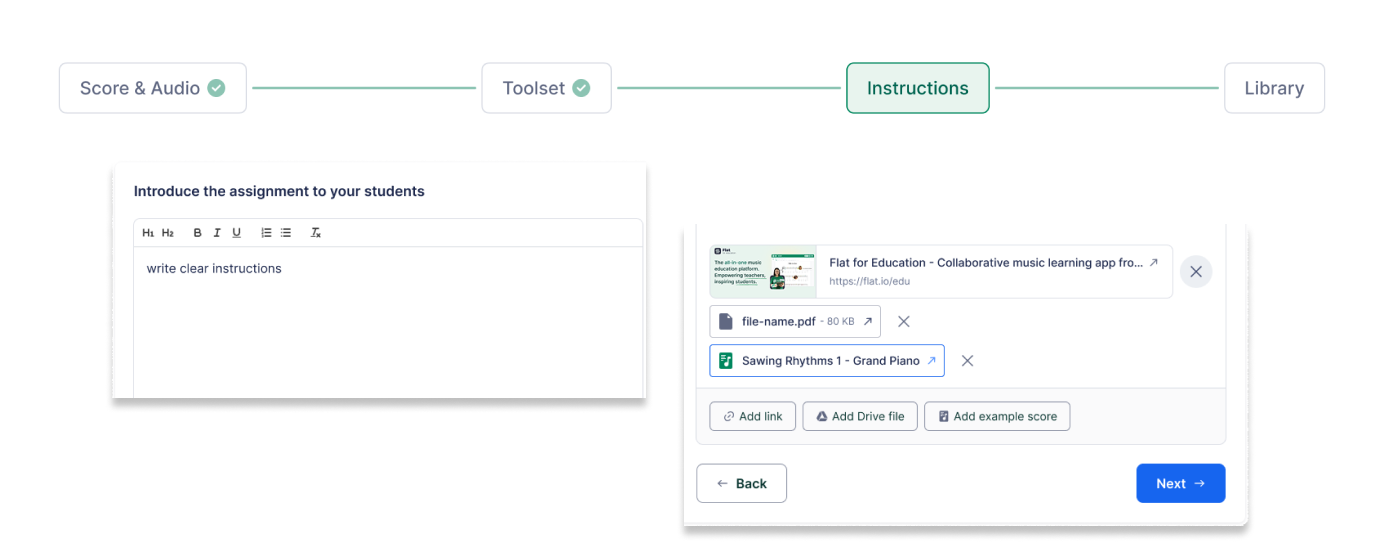
Provide clear and specific instructions to guide students through the assignment. The instructions editor supports rich-text formatting, including bold, italic, and bullet points.
You can also attach supporting resources, such as:
- Documents and presentations
- Videos and audio files
- Read-only scores for reference
Sharing options and library organization
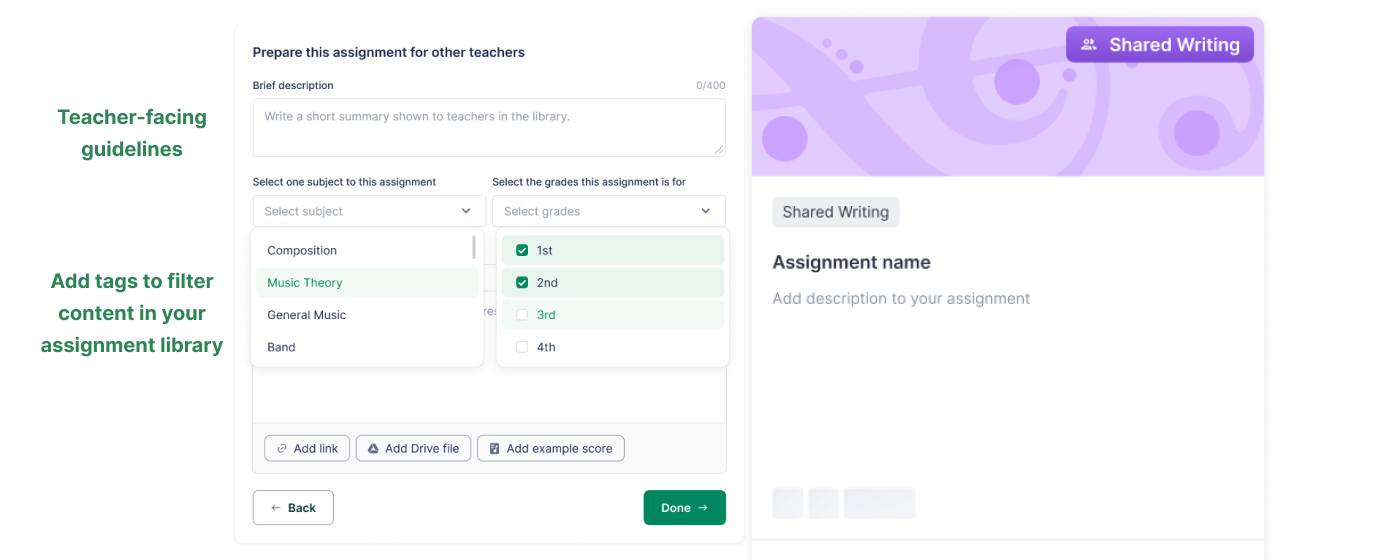
All assignments created in Flat for Education are saved in your Assignment Library and can be shared with other teachers in your organization.
To make sharing easier:
- Add teacher-facing guidelines to explain how the assignment should be used
- Add tags such as topics and grade levels to help you quickly find the assignment later
Sharing assignments with other teachers in your organization is available on the School & District Plan and Site License only.
Post your assignment
Once everything is ready:
- Publish the assignment and assign it to one or more classes
- Use the Student Preview to see exactly what students will experience
- If you use Google Classroom, select the appropriate Classroom topic before posting
How to group your students
Grouping students allows you to easily assign collaborative work within a class. You can create groups in advance from the Class page, or directly during assignment creation.
Create or edit groups in the Class page
This allows you to create or edit groups in advance, before assigning group work to your students.
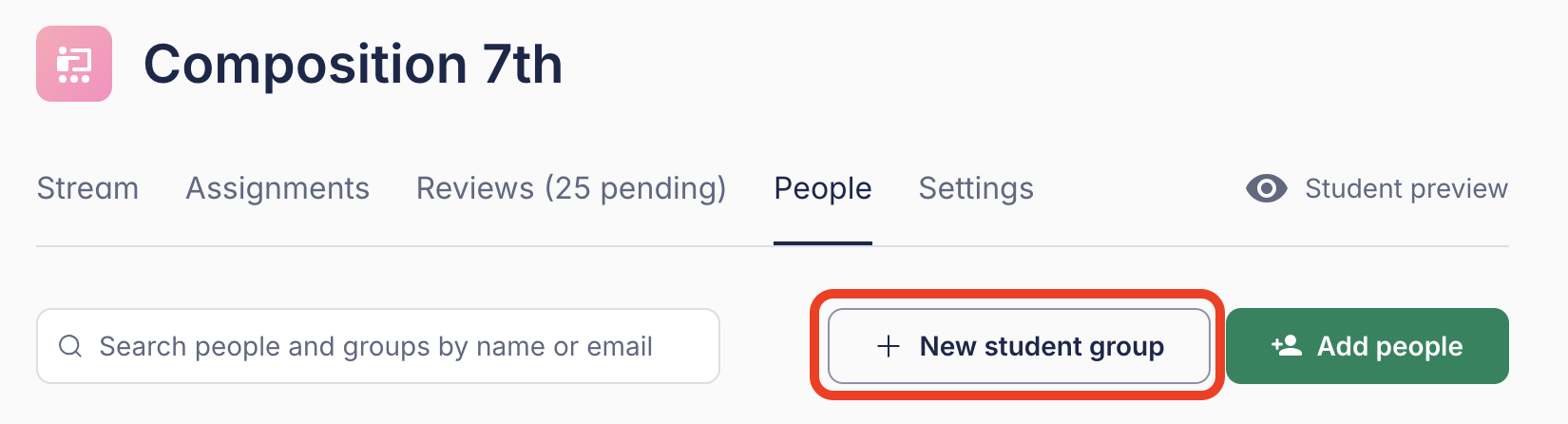
Go to your Class page and open the People tab. Click New student group to set up groups before creating an assignment.
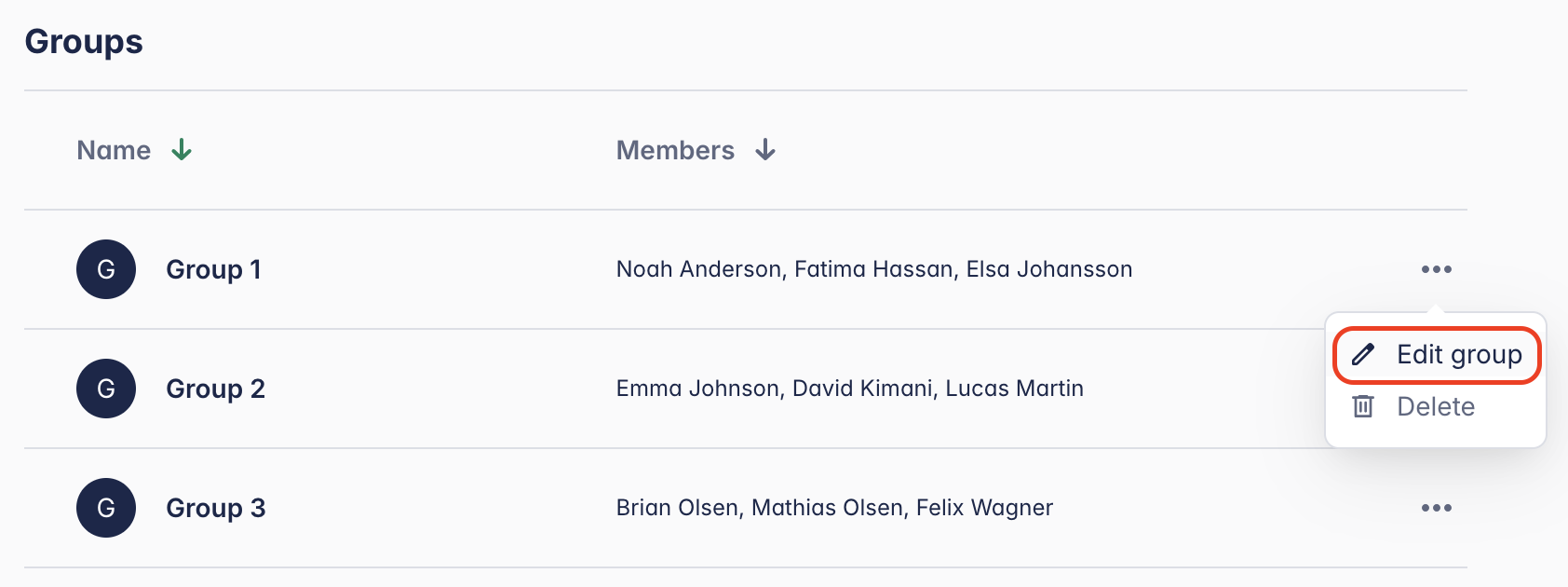
If you have existing groups, scroll down to the "Groups" section, click the three-dot menu (...), and select Edit group.
Create or edit groups in the assignment creation flow
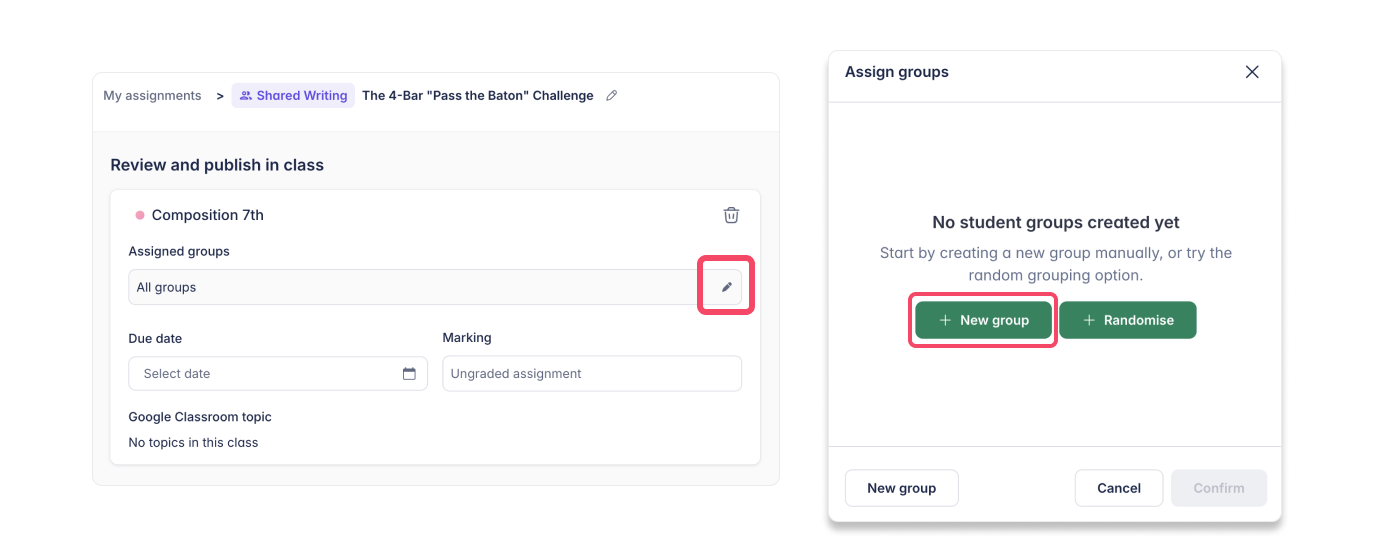
- Click the pen icon under Assigned groups, then click New group
- Drag and drop student names to manually organize groups, or click "Randomize" to generate groups automatically
- Adjust group members as needed
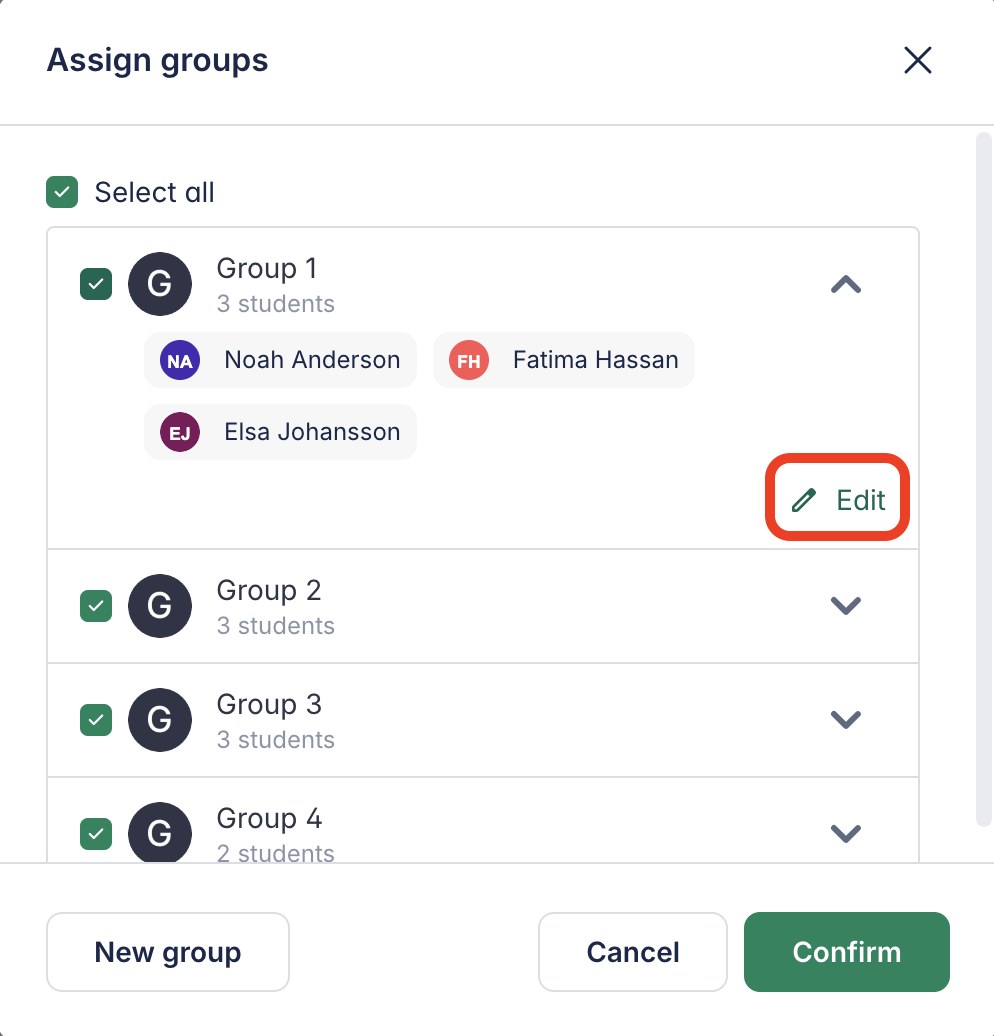
If you have existing groups, you will see your groups listed with their members. Open the group and click Edit to adjust its members.
Reviewing Student Work
Access student work
Access students' work from the "Groups' Work" section.
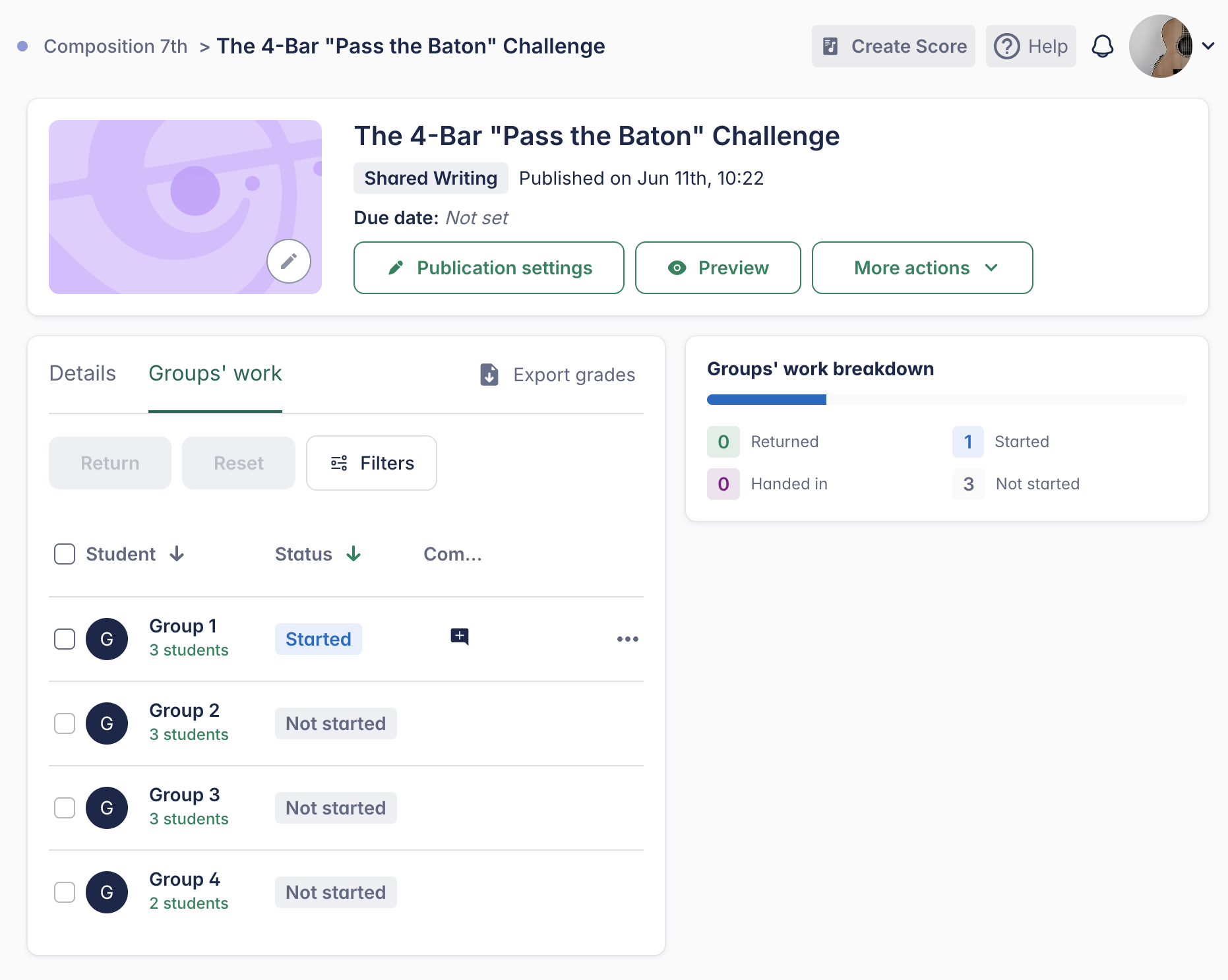
You can view their progress in real time and provide live feedback using inline comments just as with regular composition assignments.
Grades are automatically synchronized with Google Classroom and supported Learning Management Systems (LMS) such as Canvas, Schoology, Moodle, and more. Learn more about LMS integrations →
How are grades assigned in group work?
In group assignments, all students within the same group receive the same grade.
If you choose to reset a submission, it resets the work for the entire group — not just for an individual student.
Other grading and reviewing capabilities are similar to those of individual assignments. You can learn more about grading and review on our dedicated help page.
Explore Shared Writing examples
Looking for inspiration? Go to your Assignment Library, open the Sample folder and explore various Shared Writing assignments!