How to color music notes in Flat
Last updated September 23, 2026
Note colors in Flat change the color of the noteheads in a score. Flat provides two ways to color the notes heads, automatically and manually: an automatic mode that colors every note by pitch, and a manual tool that colors a single note or a selection, including a transparent color that makes notes and rests invisible.
Which note coloring tools does Flat offer?
Flat separates the two jobs. Automatic coloring is a score-wide display mode set in the Layout tab; manual coloring is a tool in the Notation tab that applies to whatever you have selected. They can be combined, with a manual color overriding the automatic one on the notes you touch.
| Feature | Where to find it | Icon |
|---|---|---|
| Automatic notes color | Left panel, Layout tab, Note heads |  |
| Manual notes color | Left panel, Notation tab, Pitch and Representation |  |
The note coloring tools are available in our editor for our Flat Power and Flat for Education users.
How do I color notes automatically?
Flat offers an automatic colorization feature when using Boomwhackers: we will automatically apply Boomwhackers colors to all the note heads in your sheet music. The mode lives in the Note heads section of the Layout tab and recolors existing notes as well as the ones you add afterwards.
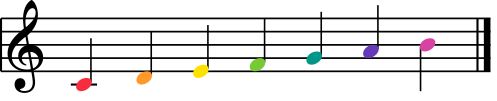
Read how to use Boomwhackers colors on your sheet music for the full walkthrough, or the automatic notehead modes for the colors and shapes Flat can apply at once.
How do I color specific notes by hand?
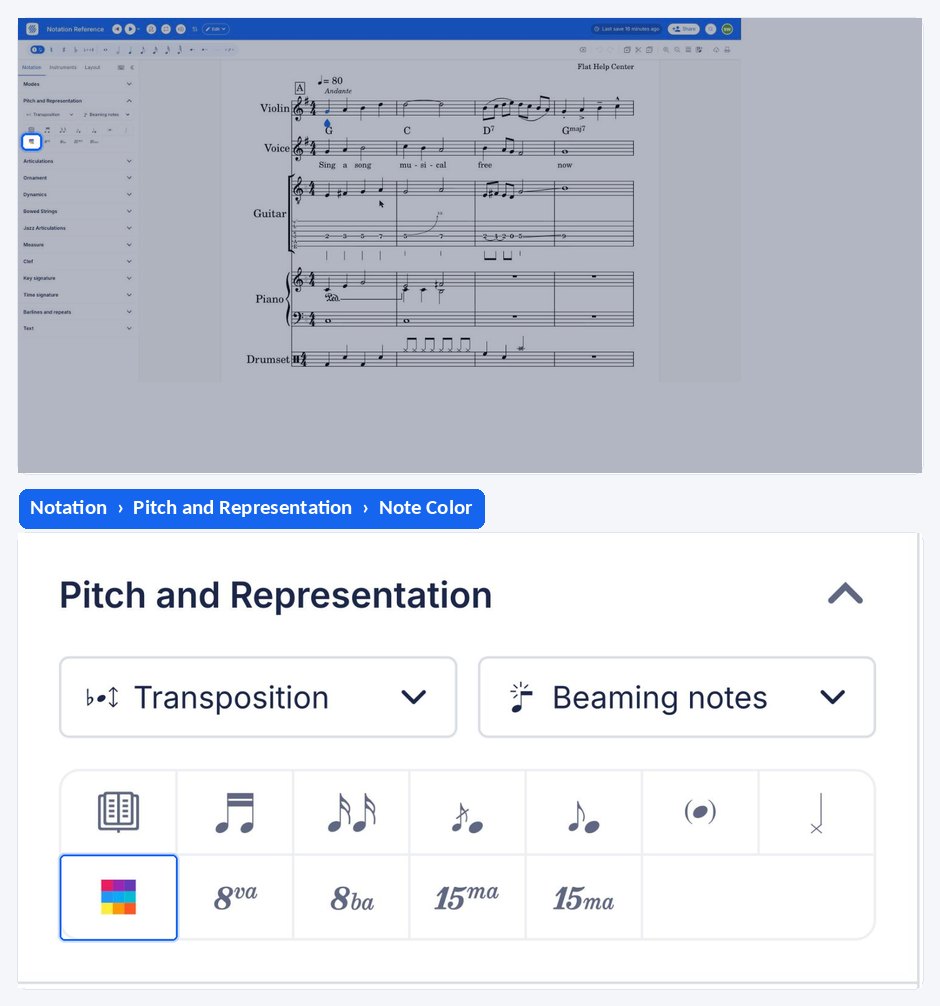
You can manually change the color of one or multiple notes using the tool available in the left panel, under Pitch and Representation in the Notation tab. This tool allows to choose among a preset of colors and also use the color picker to use any color you want.
Put your cursor on a note to change a single note color, or select multiple notes to apply a color on a range of notes.
Can I build my own color scheme?
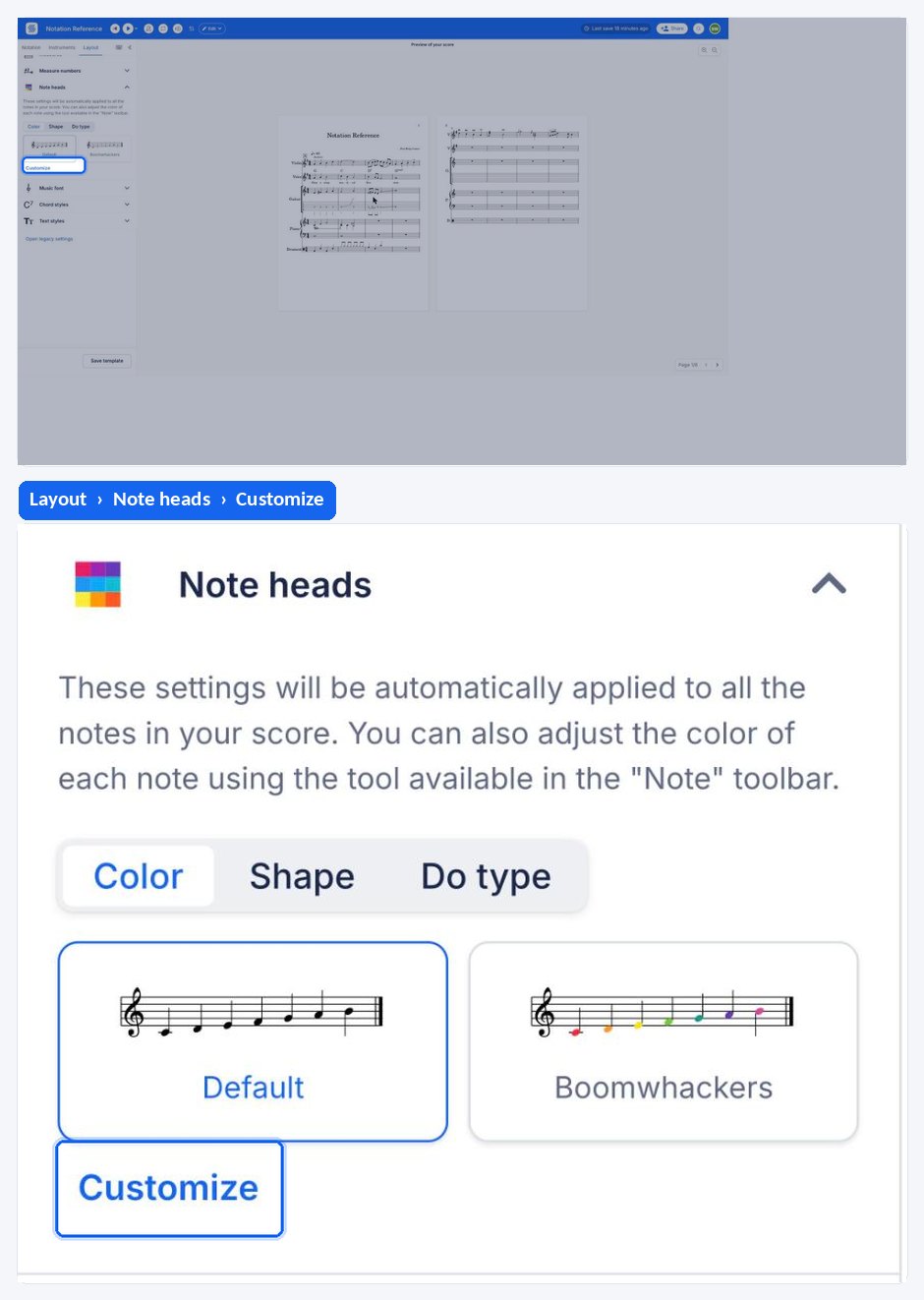
You can now craft your very own color scheme! To get started, simply go to the layout settings. There you'll find the option to handpick colors for each unique note pitch, giving you the creative freedom to create a musical experience that looks just the way you like it.
How do I hide notes with the transparent color?
You can use the transparent color from the color picker to create empty measures with hidden rests and notes. This is useful for example to make worksheets to print: the measures keep their content and their playback, but nothing is drawn on the page.
Which note coloring tools does Flat offer?
Flat separates the two jobs. Automatic coloring is a score-wide display mode that colors every note by pitch; manual coloring is a tool that applies to whatever you have selected. They can be combined, with a manual color overriding the automatic one on the notes you touch.
| Feature | What it does |
|---|---|
| Automatic notes color | Colors every notehead in the score from its pitch, using Boomwhackers or your own scheme |
| Manual notes color | Colors the note under the cursor, or a selection, with a preset color or the color picker |
The note coloring tools are available in our editor for our Flat Power and Flat for Education users.
How do I color notes automatically?
Flat offers an automatic colorization feature when using Boomwhackers: we will automatically apply Boomwhackers colors to all the note heads in your sheet music. The mode recolors existing notes as well as the ones you add afterwards.
Open the menu at the top right and tap Layout, then open Note heads and tap Boomwhackers under Color. Flat recolors the existing notes and the ones you add afterwards.
How do I color specific notes by hand?
You can manually change the color of one or multiple notes using the tool available in the left panel, under Pitch and Representation in the Notation tab. This tool allows to choose among a preset of colors and also use the color picker to use any color you want.
Put your cursor on a note to change a single note color, or select multiple notes to apply a color on a range of notes.
Can I build my own color scheme?
You can craft your very own color scheme: the layout settings offer the option to handpick colors for each unique note pitch, giving you the creative freedom to create a musical experience that looks just the way you like it.
In Note heads, tapping Custom under Color opens a keyboard where each pitch carries its own colour, so a scheme can be built note by note rather than taken whole.
How do I hide notes with the transparent color?
You can use the transparent color from the color picker to create empty measures with hidden rests and notes. This is useful for example to make worksheets to print: the measures keep their content and their playback, but nothing is drawn on the page.
Select the measures you want to empty, then pick the transparent colour from the picker. The measures keep their content and their playback, but nothing is drawn on the page.
Frequently asked questions
What is the difference between automatic and manual note colors?
Automatic coloring is a display mode applied to the whole score from its pitches, so new notes are colored as you write them. Manual coloring is a one-off change on the note under your cursor or on a selection, chosen from a preset or the color picker.
Do colored notes stay colored when I print or export?
Yes. Note colors are part of the score's notation, so they appear in the printed page and in the PDF and image exports. That is what makes the transparent color useful for building worksheets with blanks to fill in.
What does the transparent color actually remove?
Only the drawing. A note or rest set to transparent keeps its place in the measure and still plays back - it simply is not shown. That is how an apparently empty measure can still hold correct rhythm underneath.
Are note colors free?
No. The note coloring tools are available in our editor for our Flat Power and Flat for Education users. Scores that already use colors still display them for everyone; the tools that set the colors are what require the subscription.
Can I combine colors with note names in the noteheads?
Yes. A color mode and a shape mode can be active at the same time, for instance Boomwhackers colors with note names printed inside the heads - see automatic notehead modes.