How to create blank measures and leadsheets in Flat
Last updated September 23, 2026
A blank measure in Flat is a measure whose notes and rests are still in the score but no longer visible, obtained by giving them the transparent color. Flat's color picker includes that transparent color, so you can empty out measures and produce a leadsheet that is ready to print.
How do I create blank measures for a leadsheet?
Select the measures you want to empty, then open the Notation tab in the left panel and click Note Color under Pitch and Representation — the palette icon. Pick the transparent swatch, the empty one at the top right of the picker. Flat hides the rests and notes the selection contains, leaving blank measures behind. This is useful, for example, to generate a leadsheet ready to print, where only the elements you want on the page remain visible.
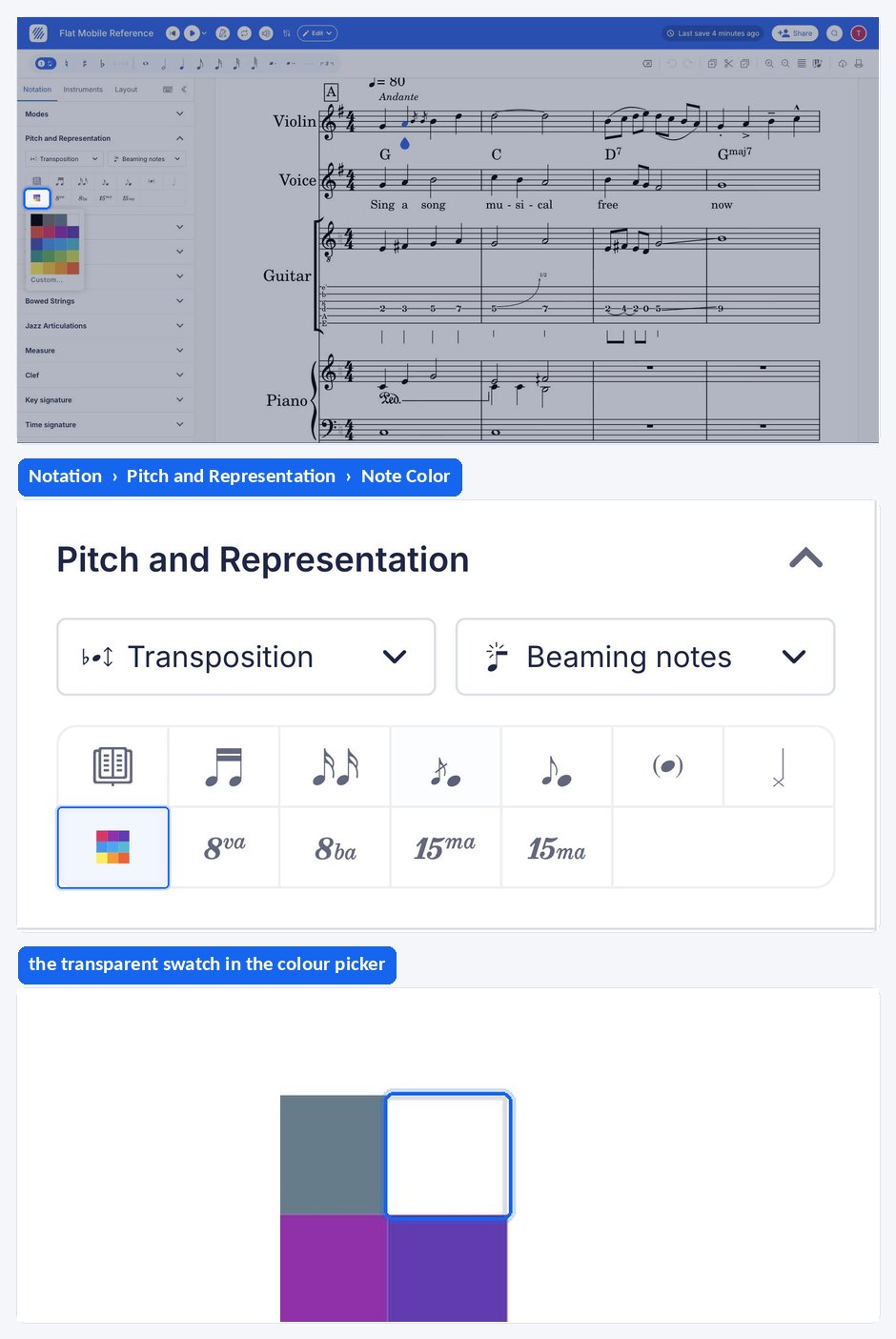
The transparent color hides notes and rests, it does not remove them. The music is still in the measure, which is why you can bring it back by giving the same notes a visible color again.
Frequently asked questions
Why do my empty measures still show a rest?
A measure with no notes is not empty on the page: notation always fills it with rests. To get a truly blank bar, select those rests as well as any notes and give them the transparent color, which hides them while leaving the measure itself in place.
Does the transparent color delete my music?
No. The notes and rests stay in the score and keep their durations, they are simply drawn in a color that does not show. That is what makes the technique reversible: apply a visible color to the same notes and they reappear exactly as they were.
Can I print or export the leadsheet I made this way?
Yes. Blank measures are ordinary measures, so the score prints and exports like any other. See print and export your scores for the available formats and the steps to produce a printable file.