How to slur grace notes in Flat
Last updated September 16, 2026
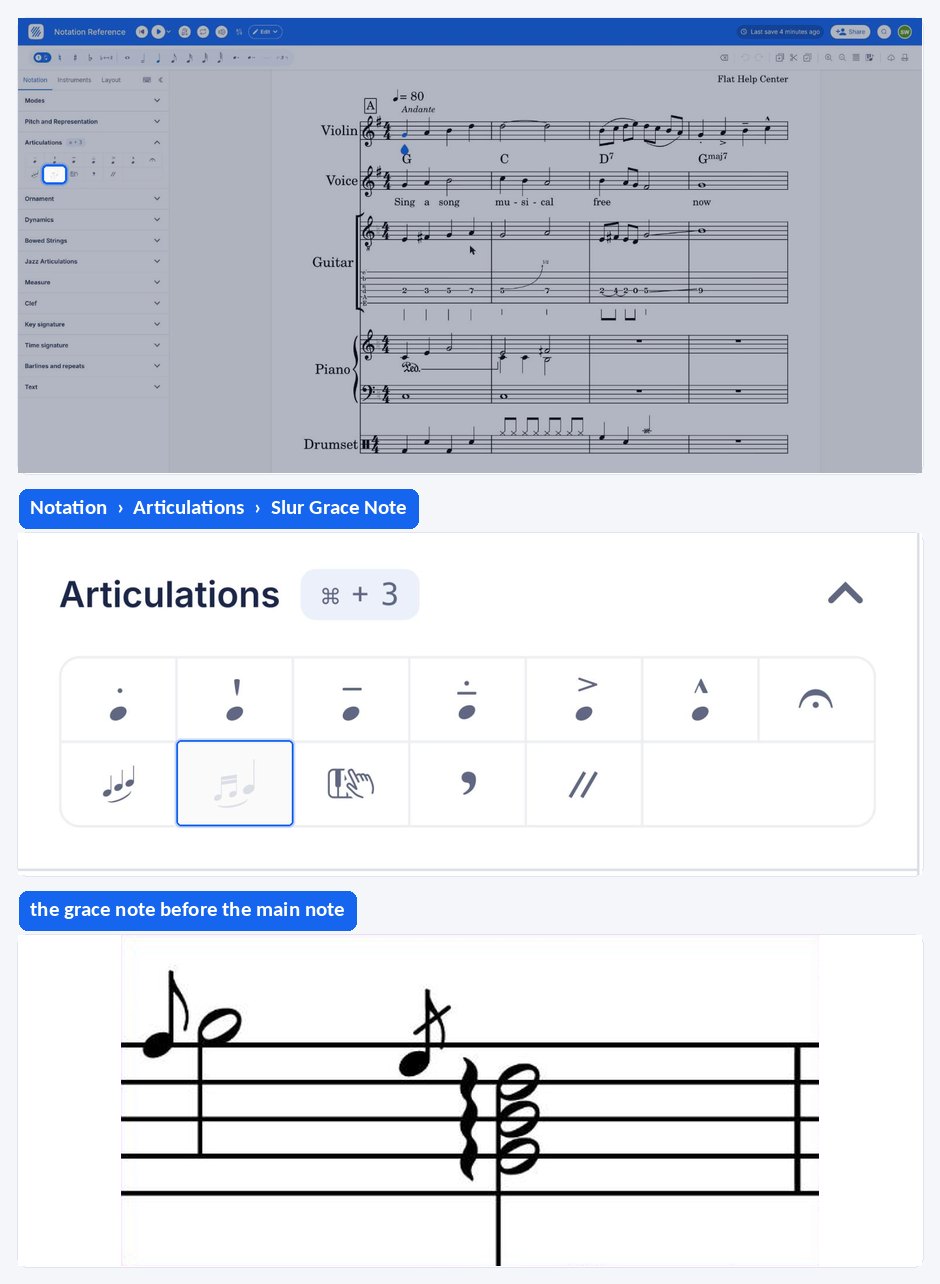
A grace note slur in Flat is the curved line that connects grace notes to the main note to which they are attached. Flat draws it from a single tool in the Notation tab: select either the grace note or the main note, apply the tool, and apply it again to remove the slur.
Where is the grace note slur tool?
The grace note slur tool is in the Notation tab of the editor's left panel. It works on the pair of notes you selected - a grace note, or the main note it is attached to - and it is a toggle, so the same button adds and removes the slur.
| Feature | Where to find it | Icon |
|---|---|---|
| Grace note slur | Notation tab |  |
How do I slur grace notes to their main note?
Open the Notation tab in the left panel, select either a grace note or the main note, and click the grace slur button - voilà! If you click on the button again, the slur will be removed.
Frequently asked questions
How do I add the grace notes themselves?
Grace notes are added before the main note, from the Pitch and Representation section of the Notation tab - see grace notes and acciaccaturas. Write the grace notes first, then slur them to their main note with the grace slur tool.
What is the difference between a grace note slur and a normal slur?
The grace note slur is a dedicated tool for the curve between grace notes and the note they lead into, added from one button with either note selected. A regular slur instead spans a phrase of written notes that you select yourself.