How your students experience Flat for Education with Google Classroom
Last updated June 12, 2026
This page explains what your students see and do once you've posted a Flat for Education assignment to Google Classroom.
Students won't know they have access to Flat for Education until you share a link or post an assignment. Syncing a roster alone doesn't notify them — and we never send onboarding or marketing emails to students.
Onboard your students
There are two ways your students can get started with Flat for Education using their Google accounts:
Via a posted assignment
If you've posted an assignment to their Google Classroom course, students will see a direct link to Flat for Education in their Stream. Clicking it signs them in and takes them straight to the assignment.
Via the Flat for Education website
If you've synced a class roster, student accounts are already provisioned. Students can go directly to your school's Flat for Education site (e.g. https://[my-school].flat.io) and click Sign in with Google to access their courses.
Assignments in their Google Classroom Stream
Once you've posted a Flat for Education assignment, students see a direct link in their Google Classroom Stream. They click it and land straight on the activity.
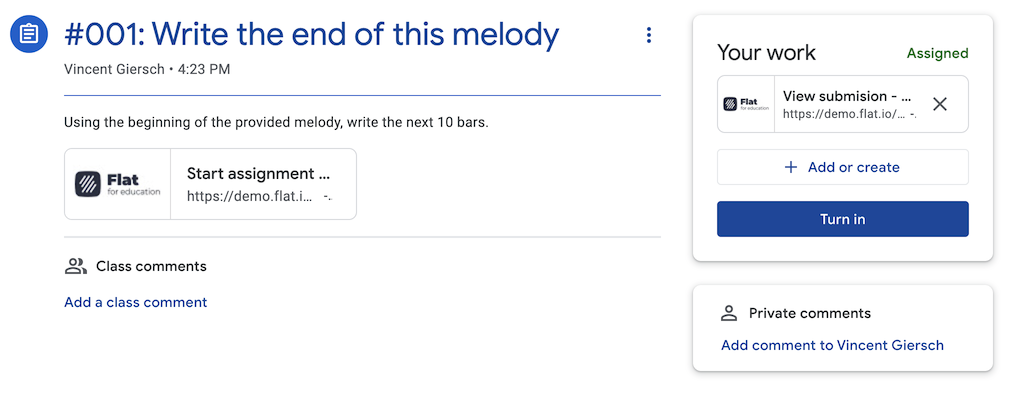
When they open their copy of the score — or create a new one — their work is automatically attached to their submission in both Flat for Education and Google Classroom.
You have access to each student's work as soon as they start, so you can follow their progress and leave real-time feedbackdirectly on the notation — no need to wait for them to submit.
Turn in
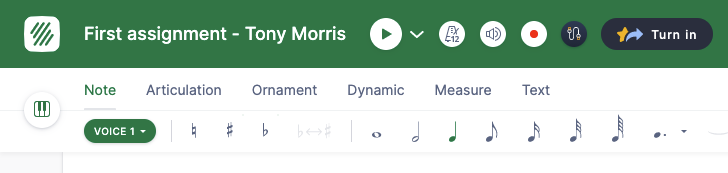
When a student finishes their assignment, they click the Turn in button on the right side panel.
Video tutorial
Watch this video for a walkthrough of the student experience on the Google Classroom integration.