Create a Google Classroom assignment with Flat for Education
Last updated September 2, 2026
This page walks you through creating and posting a Flat for Education assignment to your Google Classroom Stream.
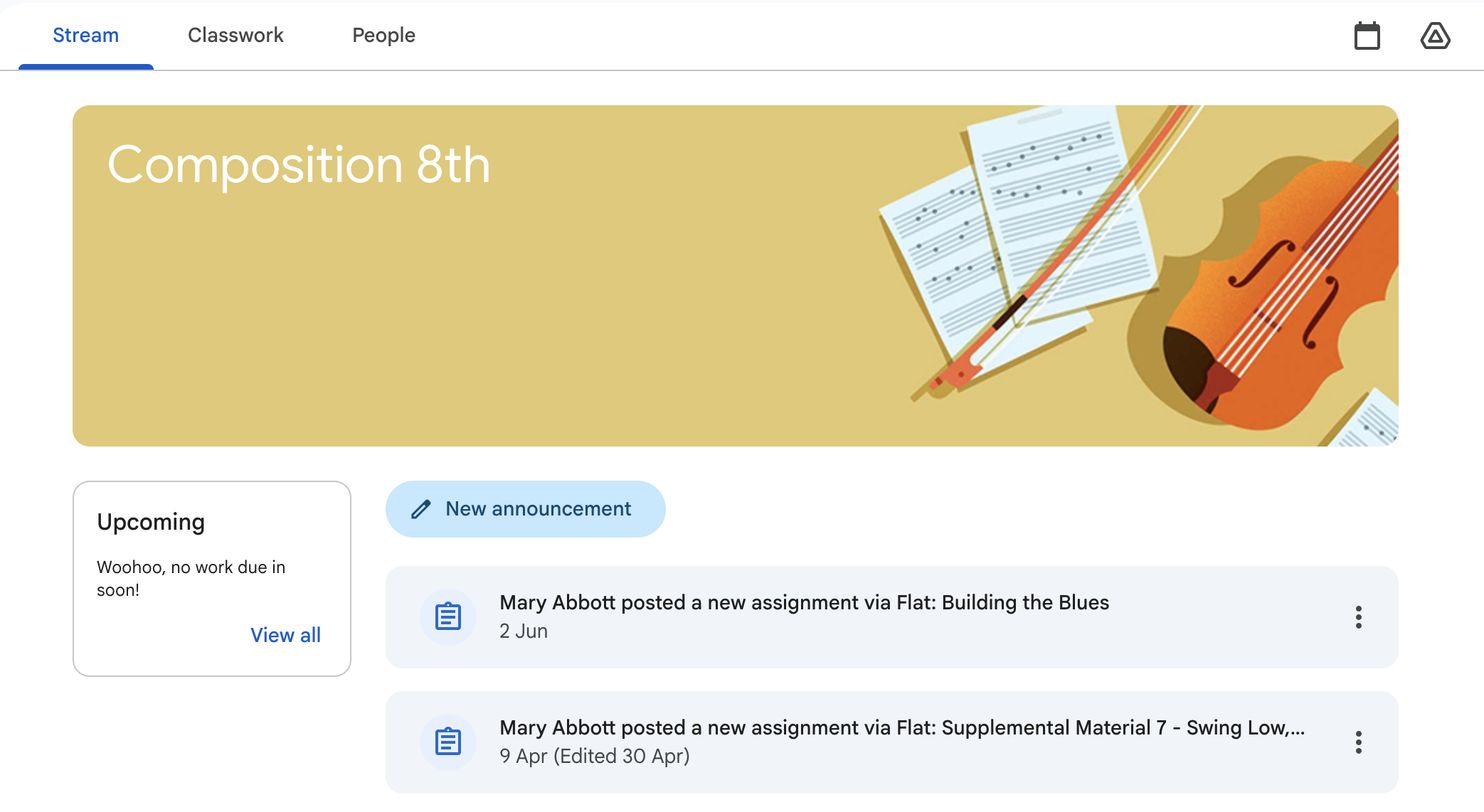
When you create an assignment in Flat for Education, it is automatically posted to your Google Classroom Stream. Modifications and student submissions sync both ways, and grades transfer to your Google Classroom gradebook automatically.
Make sure you've connected your Google Classroom classes to Flat for Education first. See the class setup guide →
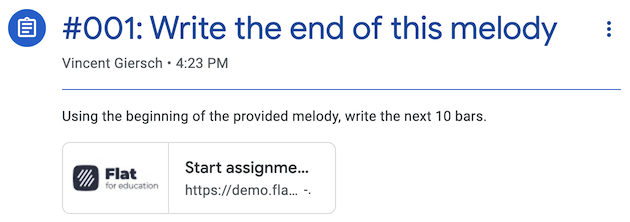
Creating an assignment
Flat for Education offers a wide range of activities, all sync-ready with Google Classroom:
- Composition — music notation projects using the score editor
- Shared Writing — students co-create and edit the same score together in real time
- Worksheet — auto-graded music theory exercises
- Performance — recorded audio submissions
- Text Responses — open-ended written reflections and analysis of musical concepts
Once your class is set up, go to your Assignment Library and create the assignment there. This lets you assign it to multiple classes at the same time using bulk assignment.
What syncs to Google Classroom
When you create a Flat for Education assignment, the following elements are posted to your Google Classroom course automatically:
- Title and instructions
- Linked attachments (links, embeds, and Google Drive files)
- Grading options
- Publication and due dates
- Google Classroom topic
- Assigned students list
If you set a publication date, the assignment is saved as a draft in Google Classroom until that date — a useful way to prepare assignments in advance without making them visible to students yet.
Post your assignment
Once your assignment is configured, post it to make it available to your students. Before posting, you can use Student Preview to see exactly what students will see.
Students' submissions made through Flat for Education are sent back to Google Classroom, along with their grades — whether set automatically or manually.
Copy an assignment to other classes
Assignments created in your Assignment Library can be reused across multiple classes and over time. Learn more about reusing assignments →
Due to a Google Classroom limitation, Flat for Education cannot access assignments copied from inside the Google Classroom interface. Always make copies from within Flat for Education to avoid sync issues.
Review and follow up
Once the assignment is live, you can track student progress and leave feedback from the review page. See the review and feedback guide →